Changelog
Follow up on the latest improvements and updates.
RSS
new
Dashboard
Tax Rules
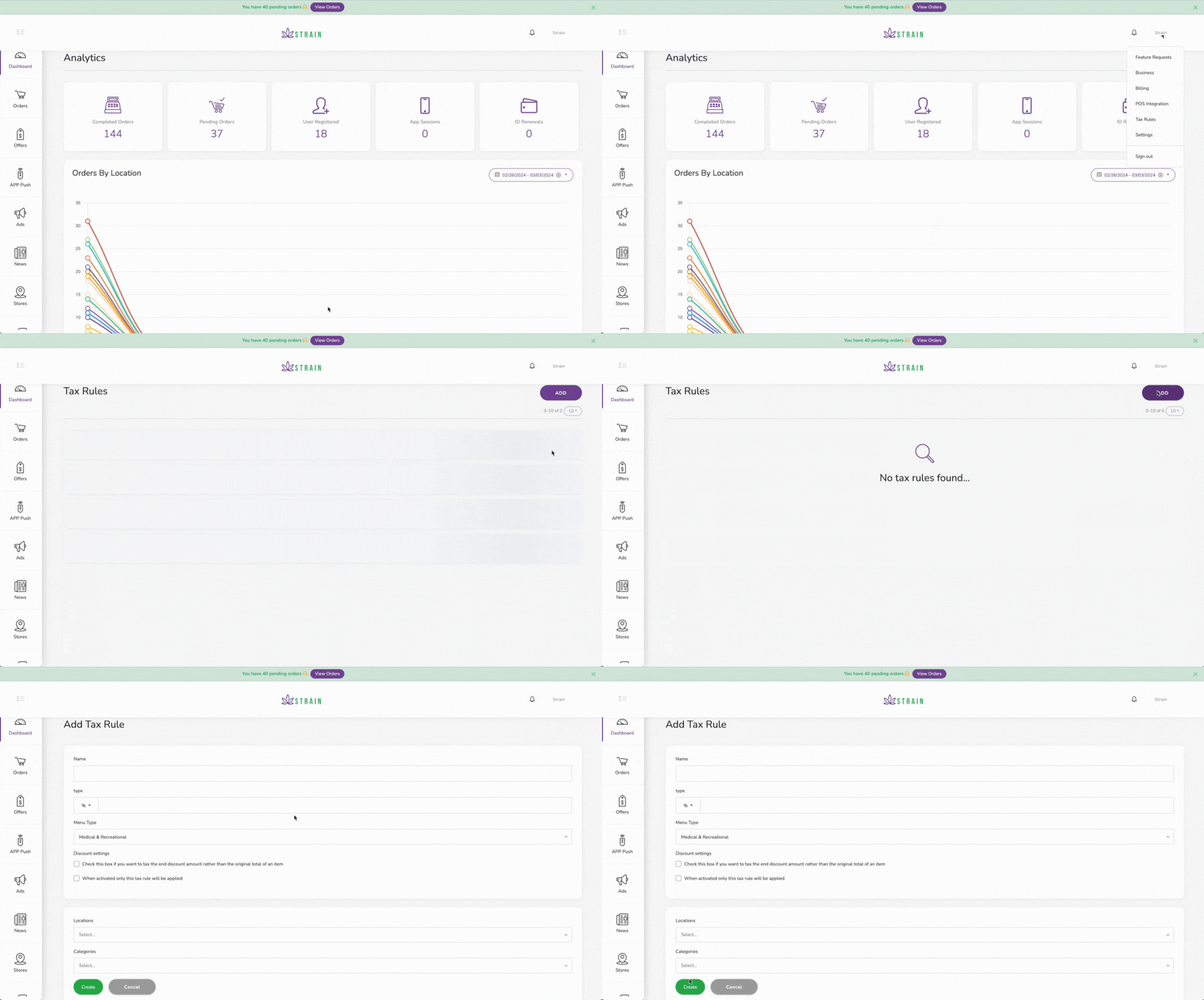
We developed a new workflow that allows you to set taxes on your products by category and location. This way you have more flexibility to comply with regulations.
How to use:
- Open your dashboard.
- Click on your account's name in the top right corner.
- Click on Tax Rules.
- Click on ADD so you can create a new one.
- Fill in the form: Name, Percentage or amount, Menu type.
Check the boxes If applies
- Select categories and locations where this tax applies.
- Click on Create.
Taxes will be applied to the products that meet the rule in the mobile app and ecommerce.
improved
Mobile APP
Cova POS phone configuration
For Cova dispensary users, their clients using the mobile app for the first time will be able to login using their registered phone number.
improved
Dashboard
Receipt orders printing automation
Users can print the receipts automatically. What this means is that when an order comes in, is automatically printed out.
improved
More categories
Users can now use these categories on their products:
- Classic
- Premium
- Exclusive
- House Flowers
- Top Shelf Flowers
fixed
Bug
Labs sync
Products were being shown with the wrong lab data: THC, CBD, and Terpens. We fixed the bug making sure the right data is shown.
new
Mobile APP
Ecommerce
Dashboard
Tell your clients the product effect
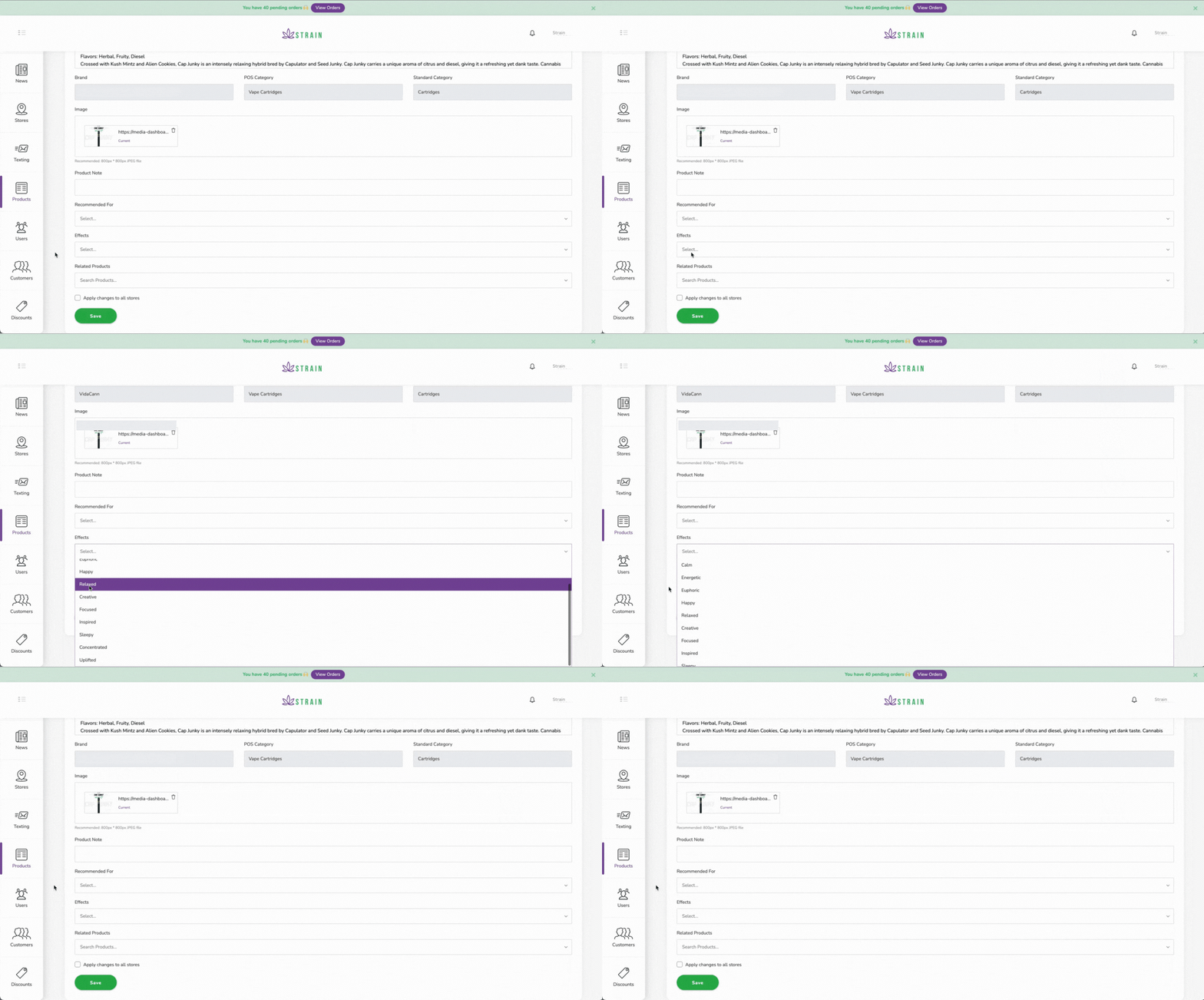
We added a section in the product description where you can select product effect(s) and will be shown in the product description in the e-commerce and mobile app menu.
How to use:
- Open your dashboard.
- On your main menu (Left bar) click on Product.
- Click the product you want to edit.
- Scroll down and select the effects* that better describe the product.
- Save changes
*You can select one or as many as you want.
These are your options:
- Calm
- Energetic
- Euphoric
- Happy
- Relaxed
- Creative
- Focused
- Inspired
- Sleepy
- Concentrated
- Uplifted
This helps the dispensary's clients find what they are looking for easier.
new
Mobile APP
Ecommerce
Dashboard
Tell your clients what your product is Recommended for.
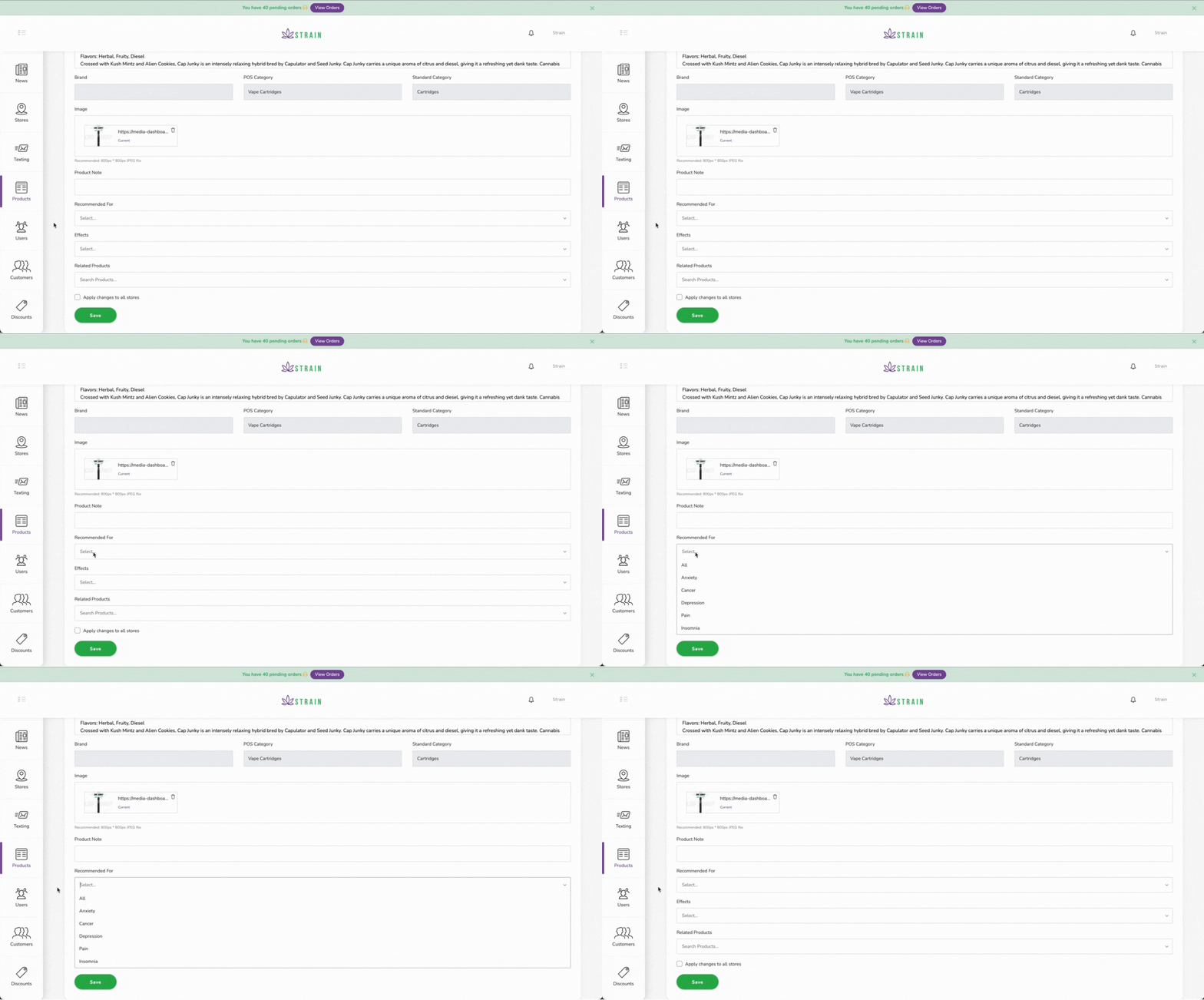
We added a section in the product description where you can select what you recommend the product to your clients and will be shown in the product description in the e-commerce and mobile app menu.
How to use:
- Open your dashboard.
- On your main menu (Left bar) click on Product.
- Click the product you want to edit.
- Scroll down and select what you recommend* the product for.
- Save changes
*You can select one or as many as you want.
These are your options:
- Anxiety
- Cancer
- Depression
- Pain
- Insomnia
This helps the dispensary's clients find what they are looking for easier.
Greenline users were asking for this. Now the order receipt shows the credit card's last 4 digits for order reference.
fixed
Bug
Recover password
Users weren't able to recover their password because the recovery screen wasn't opening.
new
Mobile APP
Dashboard
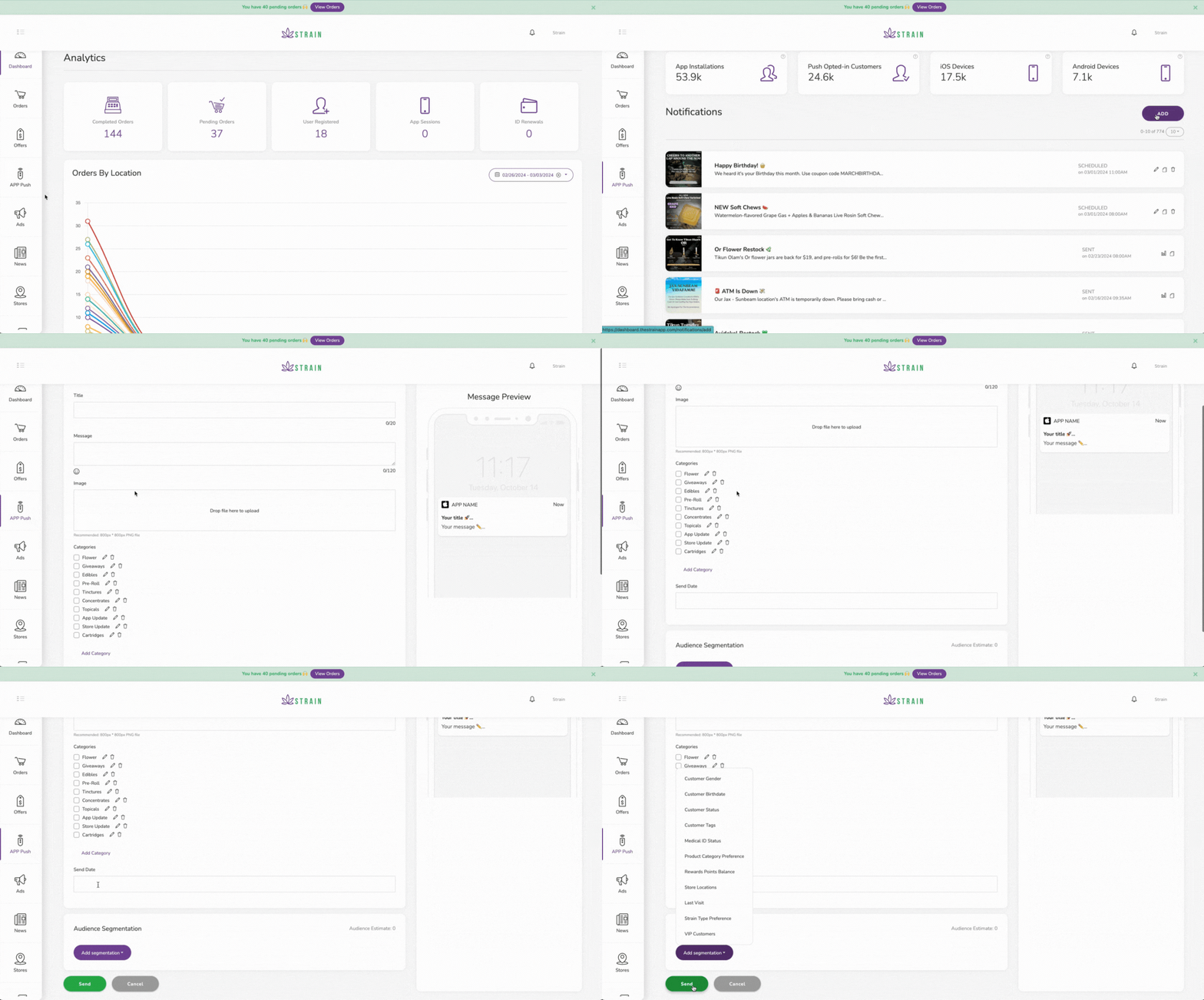
Push Notifications Segmentation
One of the most requested features is here! 🎉
Create and launch push notifications campaigns so you can reach your clients with promotions and news.
How to use:
- Open your dashboard.
- On your main menu (Left bar) click on App push.
- Click ADD.
- Fill in the form: Name, message, image (optional), categories.
- Schedule sending date.
- Add audience segmentation.
- Send.
While you design you can see a preview of the message on the right.
Load More
→